




- Thread Author
- #1
Here are the tools you need for the lesson.
Before you get started with this lesson, keep in mind that everything you're learning from this guide is from experiences. Most of the time, you're going to deal with trials and errors along the way.
WORD OF ADVICE: Don't post your problem or regathering issue in this topic.
For further issues, if you need help, go to our support section and post your help there.
If you have questions about this guide, please send me a private message.
Information for stage backgrounds.
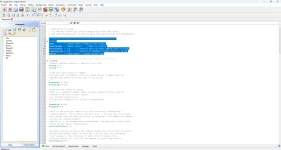
1. Learn to read and understand the Stage00.def that is located in the Ikemen Go's stage folder.
2. Come up with an imagination and idea to create your stage background foundation.
3. You are coding your stage background from Fighter Factory Studios. 3.7 is best to use.
Example: mycity.def, mycity.sff, and mycity.mp3
A common HD stage size today is 1280x720 for Ikemen Go.

It's always good to create a split of the image into 4 pieces.
It is always best to have your images in PNG format.
Example:
1. sky.png

2. city.png
3. floor.png
4. fence.png
We call all 4 of these images, which are known to be sprites.
Why do we need 4 sprite images of the layer?
Because Ikemen GO moves layers at different speeds for parallax scrolling.
Example layers:
The following basic steps we will be doing are as follows:
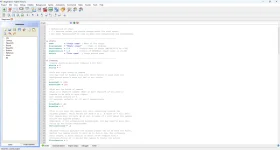
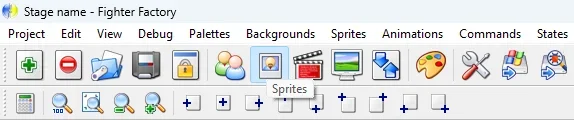
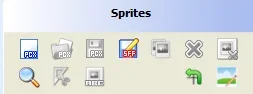
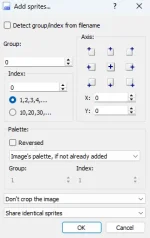
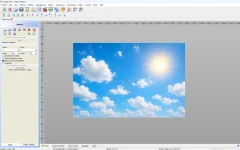
1. In Fighter Factory Studio you get to see these settings. Icons and tabs

2. Start by making a new project. Press the GREEN PLUS ICON BUTTON.
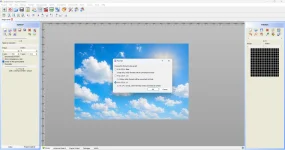
3. A new window will pop up, so choose the empty MugenNEXT box and hit okay.

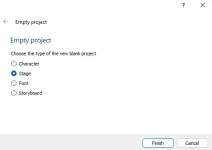
4. Another window will pop up again, and this time choose stages and hit the finish button.

- Paint.NET image editor
- Fighter Factory Studio 3.7
- Sprite Resources
- Nightly Build Ikemen Go Software
- ChatGPT for AI CREATIVITY
- Video Game Music Sound Resources
- VS Code for coding your stages
- Video tools converter for Ikemen Go
Before you get started with this lesson, keep in mind that everything you're learning from this guide is from experiences. Most of the time, you're going to deal with trials and errors along the way.
WORD OF ADVICE: Don't post your problem or regathering issue in this topic.
For further issues, if you need help, go to our support section and post your help there.
If you have questions about this guide, please send me a private message.
Information for stage backgrounds.
1. Learn to read and understand the Stage00.def that is located in the Ikemen Go's stage folder.
2. Come up with an imagination and idea to create your stage background foundation.
3. You are coding your stage background from Fighter Factory Studios. 3.7 is best to use.
Basic Structure of a Stage
A stage usually contains:| File Type | Purpose |
|---|---|
.def | Main stage configuration |
.sff | Sprite file containing graphics |
.snd | Optional sound/music |
.mp3 / .ogg | Background music |
A common HD stage size today is 1280x720 for Ikemen Go.
Step 2—Slice the background into layers.
Instead of one huge image, we going to use layer images in PNG format
It's always good to create a split of the image into 4 pieces.
It is always best to have your images in PNG format.
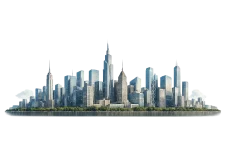
Example:
1. sky.png

2. city.png
3. floor.png
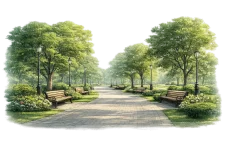
4. fence.png
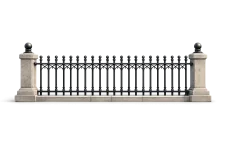
We call all 4 of these images, which are known to be sprites.
Why do we need 4 sprite images of the layer?
Because Ikemen GO moves layers at different speeds for parallax scrolling.
Example layers:
- Sky goes first
- Buildings goes second
- Floor or Ground goes 3rd
- Foreground fence objects go last.
Step 3—Import 4 sprites into Fighter Factory
Let Open Fighter Factory StudioThe following basic steps we will be doing are as follows:
- Create new Stage
- Import sprites
- Save as .sff
1. In Fighter Factory Studio you get to see these settings. Icons and tabs
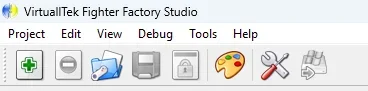
2. Start by making a new project. Press the GREEN PLUS ICON BUTTON.
3. A new window will pop up, so choose the empty MugenNEXT box and hit okay.
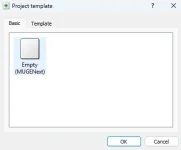
4. Another window will pop up again, and this time choose stages and hit the finish button.
Last edited: